
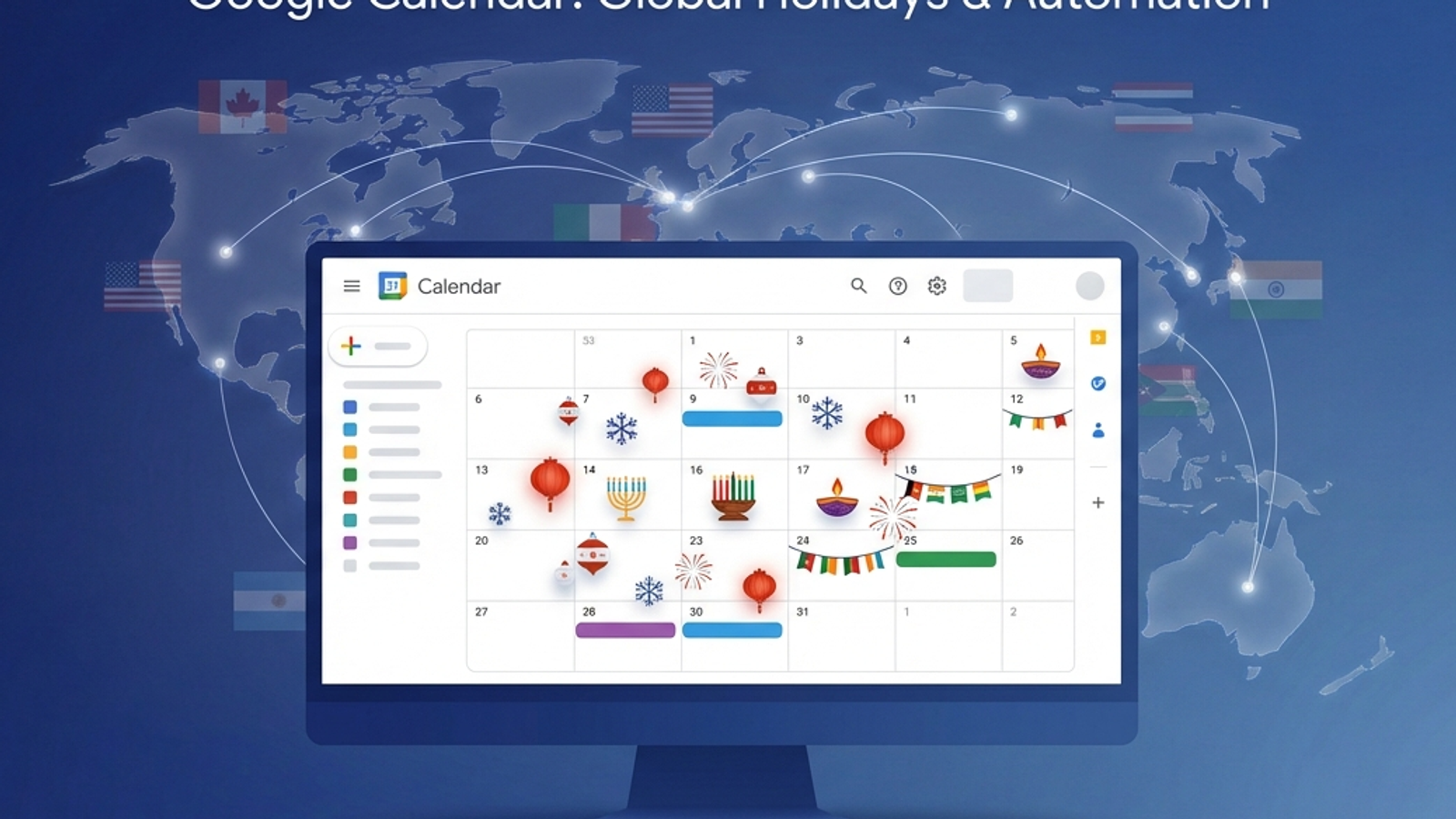
You've done it. Everyone has done it. You send out a meeting invite, the confirmations roll in, and then someone replies: "That's a public holiday in my country." Cue the awkward apologies and scramble to reschedule.
For distributed teams working across multiple countries, accidentally scheduling meetings on public holidays is frustratingly common. In a recent survey of 500+ remote workers, 71% reported being invited to meetings on their public holidays at least once per quarter. Nearly half said it happened monthly.
While it might seem like a minor inconvenience, repeatedly scheduling meetings on holidays signals to your team members that their local culture and work-life boundaries aren't valued. It erodes trust, reduces engagement, and creates unnecessary friction in already-complex distributed team coordination.
The good news? This is completely preventable. In this guide, we'll explore five practical approaches to eliminate holiday scheduling conflicts—ranging from simple cultural shifts to automated technical solutions.
Why Holiday Scheduling Conflicts Happen
Before solving the problem, let's understand why it persists despite everyone's best intentions.
The Complexity Multiplier
Each country has 8-15 public holidays annually. If your team spans 6 countries, that's 60-90 holidays to track. Add in regional variations (Quebec vs. Ontario, Gujarat vs. Maharashtra), and the number can easily exceed 100.
Even the same holiday occurs on different dates across countries. Labor Day in the US is in September, while most other countries celebrate it on May 1st. Some holidays follow lunar calendars and shift dates yearly.
Calendar Tools Aren't Designed for This
Google Calendar and Outlook let you subscribe to one holiday calendar. If you're a manager with team members across five countries, you'd need five separate subscriptions, creating visual clutter and making it easy to miss conflicts.
Most scheduling tools check for time zone availability but don't factor in holidays. The person in Singapore shows as "available" on Chinese New Year because their calendar is technically free.
Human Memory is Unreliable
Even with the best intentions, people forget to check. You're scheduling a meeting for next Thursday, you see everyone's calendar is free, and you click send. The fact that Thursday is Australia Day doesn't cross your mind until the out-of-office replies start coming in.
No One Wants to Be "That Person"
Team members often don't push back when meetings are scheduled on their holidays because they don't want to seem difficult or uncommitted. This silence reinforces the problem—the meeting organizer never realizes they're creating an issue.
Method 1: Implement a "Holiday Check" Pre-Flight Checklist
The simplest approach requires no technology—just a consistent habit.
How It Works
Before sending any meeting invite that includes people across multiple locations, check a holiday reference:
1. Open your meeting invite
2. Note which countries/regions will be represented
3. Check a holiday calendar for those locations (TimeAndDate.com, OfficeHolidays.com, etc.)
4. If there's a conflict, choose a different date
Best Used For
- Small teams (5-15 people)
- Teams spanning 2-3 countries
- Organizations with infrequent cross-location meetings
Pros and Cons
Pros:
- Zero cost
- Immediate implementation
- Builds cultural awareness
Cons:
- Easy to forget under time pressure
- Doesn't scale beyond a few countries
- Adds friction to scheduling process
- Relies on individual discipline
Making It Stick
Create a visual reminder: Add a sticky note to your monitor or set a browser bookmark titled "CHECK HOLIDAYS BEFORE SCHEDULING"
Team norm: Establish a team agreement that all cross-country meeting invites should include a note: "Checked for holidays: [country list]"
Slack bot reminder: Set up a simple reminder that posts weekly: "Planning meetings this week? Remember to check for holidays in [team country list]"
Real-World Example
A 12-person design agency with team members in the US, UK, and India implemented a "holiday check" protocol. Before sending meeting invites, the scheduler would quickly check OfficeHolidays.com for all three countries.
Result: Holiday conflicts dropped from 2-3 per month to near zero. The key was making it a shared expectation, not just individual responsibility.
Method 2: Centralize Holiday Visibility in a Shared Calendar
Instead of checking external sources, bring holiday data into your existing scheduling workflow.
How It Works
Create a shared team calendar that displays all relevant public holidays:
1. Set up a dedicated "Team Holidays" calendar in Google Calendar or Outlook
2. Manually add public holidays for each country/region your team spans
3. Share this calendar with the entire team
4. When scheduling meetings, visually check the Team Holidays calendar alongside individual calendars
Best Used For
- Medium teams (15-40 people)
- Teams spanning 3-6 countries
- Organizations with a dedicated ops/people operations person
Pros and Cons
Pros:
- Visual integration with existing workflow
- Entire team has visibility
- Creates single source of truth
- Helps with planning beyond just meetings (project timelines, deadlines, etc.)
Cons:
- Requires manual setup and maintenance
- Holidays change yearly (especially lunar calendar holidays)
- Someone needs to own keeping it updated
- Doesn't prevent scheduling—just provides visibility
Implementation Tips
Color-coding: Use different colors for different countries to quickly identify which holidays affect which team members
Naming convention: Use clear event names like "Public Holiday - Diwali (India)" so it's immediately obvious what it is and who it affects
Quarterly review: Assign someone to review and update the calendar quarterly, especially for upcoming lunar calendar holidays
Onboarding: Add "subscribe to Team Holidays calendar" to your onboarding checklist
Maintenance Reality Check
The biggest challenge with this approach is maintenance. Holidays for 2027 need to be added in late 2026. Someone has to remember to do this, and it has to be done accurately.
If this calendar becomes outdated, people stop trusting it and stop checking it. Assign clear ownership and build in quarterly reminders.
Real-World Example
A 30-person startup with teams in the US, Poland, Brazil, and Singapore created a shared "Global Holidays" calendar. Their ops manager spent 2 hours setting it up initially and scheduled a quarterly 30-minute task to update upcoming holidays.
The team developed a habit of viewing this calendar alongside individual schedules. Holiday conflicts decreased by 85% in the first quarter.
Method 3: Use Out-of-Office Blocks for Public Holidays
Instead of a separate calendar, have each team member block their own public holidays as "out of office" on their personal calendar.
How It Works
1. Each team member identifies their location's public holidays
2. They create "out of office" or "all-day busy" events on their calendar for each holiday
3. Scheduling tools (Calendly, Google Calendar scheduling, etc.) automatically see these blocks and avoid those times
4. No separate checking required—the scheduling tool handles it
Best Used For
- Any team size
- Teams using calendar-based scheduling tools
- Organizations with async-first culture where people manage their own calendars
Pros and Cons
Pros:
- Decentralized—no single person responsible for maintenance
- Each person controls their own holidays (including regional variations and personal observances)
- Works automatically with most scheduling tools
- Scales well as team grows
Cons:
- Requires every team member to set it up correctly
- Easy for someone to forget or skip holidays far in the future
- Doesn't help with manual meeting invites (only automated scheduling)
- New hires need to know to do this
Making It Work
Onboarding checklist: Add "Block your public holidays on your calendar for the year" as an onboarding task
Template for new hires: Provide step-by-step instructions with screenshots showing how to add out-of-office blocks
Yearly reminder: In December, send a team-wide reminder to add next year's public holidays to calendars
Manager spot-checks: During 1:1s, managers can verify that team members have upcoming holidays blocked
Important: Don't Rely on Personal PTO Tracking
Some teams assume people will just mark holidays as PTO in their HRIS or time-off tool. This doesn't integrate with calendars and doesn't prevent scheduling. The blocks need to be visible in the scheduling tool itself.
Real-World Example
A 50-person SaaS company asked all team members to block their public holidays as "out of office" during onboarding and each December for the following year. They provided a template email with instructions and links to their country's holiday calendar.
Compliance was around 70% without enforcement, but that was enough to catch most conflicts. Combined with a culture of checking calendars carefully, holiday meeting conflicts became rare.
Method 4: Establish "Core Collaboration Days" That Exclude High-Holiday Periods
Rather than tracking every individual holiday, identify periods of high holiday density and adjust team rhythms accordingly.
How It Works
1. Map out the year and identify when holidays are concentrated across your team's locations
2. Establish "core collaboration days" when synchronous meetings are expected
3. Build in exceptions during high-holiday periods (late December, Diwali season, Chinese New Year, etc.)
4. During high-holiday times, operate in async mode or reduce meeting load
High-Holiday Periods Across Global Teams
Late December / Early January:
- Christmas (many countries)
- New Year's Day (global)
- Orthodox Christmas (Jan 7)
- New Year celebrations extending into early January (some Asian countries)
March/April:
- Holi (India)
- Passover (Israel and Jewish communities)
- Easter (many countries)
- Various spring festivals
Summer (July-September):
- Independence days (US July 4, India Aug 15, Brazil Sep 7, Mexico Sep 16, Singapore Aug 9)
- Mid-Autumn Festival (lunar, usually September)
October-November:
- Diwali (lunar, Oct-Nov, India and Indian diaspora)
- Thanksgiving (US, Canada)
- Day of the Dead (Mexico, Latin America)
Best Used For
- Asynchronous-first teams
- Teams with high meeting load that can benefit from seasonal reduction
- Organizations doing strategic planning that can accommodate seasonal rhythms
Pros and Cons
Pros:
- Reduces scheduling complexity during peak holiday times
- Builds in natural rest periods for the team
- Acknowledges cultural reality rather than fighting it
- Can improve work-life balance by legitimizing reduced pace during holidays
Cons:
- Doesn't address holidays outside high-density periods
- May not work for teams with customer-facing requirements
- Requires buy-in from leadership
- Could impact productivity during certain periods
Implementation Approach
Annual planning: During yearly planning, mark high-holiday periods on the roadmap
Communication: "During weeks of Dec 20-Jan 3, July 4-July 10, and Diwali week, we operate in async mode with reduced meeting load"
Project timeline buffers: Build extra buffer into projects that span high-holiday periods
Celebrate the diversity: Use these periods to share cultural information and celebrate the team's diversity
Real-World Example
A 40-person product team spanning 8 countries implemented "low-meeting weeks" during late December, Diwali week, and Chinese New Year week. They explicitly communicated that no new meetings would be scheduled during these periods, existing recurring meetings were canceled, and async communication was preferred.
Team feedback was overwhelmingly positive. People appreciated the explicit acknowledgment of their holidays and the reduced pressure. Productivity didn't suffer—work continued, just with more flexibility and less synchronous coordination.
Method 5: Automate Holiday Blocking with Calendar Tools
The most reliable approach: automatically add public holidays to team calendars based on their location, with zero manual effort.
How It Works
1. Use a tool that integrates with your calendar (Google Calendar, Outlook, etc.)
2. Configure each team member's location/region
3. The tool automatically adds public holidays as "out of office" or "busy" events
4. Holidays update yearly without manual intervention
5. Scheduling conflicts are automatically prevented
Available Solutions
Autolidays: Automatically adds public holidays to Google Calendar based on team member locations, with automatic updates for lunar calendar holidays and regional variations
HRIS integrations: Some HRIS tools (BambooHR, Rippling) can sync holidays to calendars based on employee location data
Custom automation: Build your own using holiday APIs (Calendarific, Nager.Date) and Google Calendar API
Best Used For
- Any team size, especially 20+ people
- Teams spanning 5+ countries
- Organizations that value automation and reducing manual overhead
- Teams that already rely heavily on calendar-based scheduling
Pros and Cons
Pros:
- Zero ongoing manual effort
- Scales infinitely as team grows
- Automatically stays current (lunar holidays, yearly changes)
- Handles regional variations without extra complexity
- Works with all calendar-based scheduling tools
- New team members automatically get their holidays configured
Cons:
- May require initial setup or subscription cost
- Team members need to trust the automation
- Some solutions only work with specific calendar platforms
Setup Process (Using Autolidays as Example)
1. Connect calendar: Authenticate with Google Workspace
2. Configure team: Add team members and their locations
3. Set preferences: Choose how holidays should appear (all-day busy, out-of-office, etc.)
4. Activate: Holidays automatically sync to calendars
5. Forget about it: Updates happen automatically, including yearly holiday changes
ROI Calculation
Consider a team of 25 people across 6 countries:
Manual approach time cost:
- Initial setup: 3 hours
- Quarterly updates: 1 hour × 4 = 4 hours
- Holiday conflicts and rescheduling: ~30 min/month × 12 = 6 hours
- Total annual time cost: 13 hours
Automated approach:
- Initial setup: 30 minutes
- Ongoing maintenance: 0 hours
- Conflicts: Near zero
- Total annual time cost: 0.5 hours
Time savings: 12.5 hours/year for a 25-person team. As teams scale, the savings multiply.
Real-World Example
A 60-person agency with team members across 12 countries implemented Autolidays after their manual shared calendar became too difficult to maintain. Their ops manager was spending 6-8 hours per quarter updating the holiday calendar, and conflicts were still occurring due to missed regional holidays.
After implementing automated holiday blocking, conflicts dropped to near zero. The ops manager reclaimed those quarterly hours for higher-value work. Team feedback highlighted feeling more respected and included.
Choosing the Right Approach for Your Team
Decision Matrix
Team Size: 5-15 people, Countries: 1-3
→ Method 1 or 2: Pre-flight checklist or shared calendar
→ Low complexity, manual approaches work fine
Team Size: 15-30 people, Countries: 3-6
→ Method 2 or 3: Shared calendar or out-of-office blocking
→ Need more systematic approach, but can still manage manually
Team Size: 30-50 people, Countries: 5-10
→ Method 3 or 5: Out-of-office blocking or automation
→ Manual overhead becoming significant, automation ROI is clear
Team Size: 50+ people, Countries: 8+
→ Method 5: Automation required
→ Manual approaches don't scale, compliance becomes critical
You Can Combine Methods
The most effective approach often combines multiple methods:
- Method 4 + Method 5: Automate individual holidays + reduce meetings during high-holiday periods
- Method 2 + Method 3: Shared calendar for visibility + out-of-office blocks for scheduling prevention
- Method 1 + Method 3: Cultural norm of checking + automated calendar blocks as backup
Implementation Action Plan
Week 1: Choose Your Approach
- Assess team size, countries, and complexity
- Review the five methods
- Choose primary approach (and any complementary methods)
- Get team/leadership alignment
Week 2: Set Up Infrastructure
- Implement technical solution (shared calendar, automation tool, etc.)
- Configure for all team members
- Test with upcoming holidays
Week 3: Roll Out and Train
- Announce new approach to team
- Provide documentation and how-to guides
- Conduct team training or Q&A
- Update onboarding materials
Week 4+: Monitor and Iterate
- Track holiday scheduling conflicts (goal: zero)
- Gather team feedback
- Adjust process as needed
- Celebrate success
Common Pitfalls to Avoid
Pitfall 1: Assuming Everyone Knows Their Holidays
Not everyone has their country's full holiday calendar memorized, especially for holidays that shift dates yearly. Provide resources.
Pitfall 2: Forgetting Regional Variations
Tracking country-level holidays but missing provincial/state differences creates gaps. India, Canada, UAE, and others have significant regional variation.
Pitfall 3: Set-It-and-Forget-It Syndrome
Even automated systems need occasional checks. Verify that new team members are configured correctly and that holidays are appearing as expected.
Pitfall 4: Not Communicating the "Why"
If you implement a new system without explaining why it matters, adoption will be weak. Share the cultural importance and respect dimension.
Pitfall 5: Making It Too Complex
Don't create a system that's harder than the problem. If your process for avoiding scheduling conflicts takes more time than the conflicts themselves cost, it won't stick.
Conclusion
Preventing holiday scheduling conflicts isn't just about calendar management—it's about building an inclusive culture where every team member feels their local context is valued.
The right approach depends on your team's size, geographic spread, and appetite for automation. Small teams with low complexity can succeed with simple checklists. Larger, more distributed teams benefit from automation that removes the manual overhead entirely.
Regardless of which method you choose, the impact is immediate: fewer rescheduling headaches, higher team morale, and a signal to your distributed team that you've designed systems with their needs in mind.
Start with one method this week. Your team will thank you the next time a meeting invite arrives and it's NOT on their public holiday.
---
Ready to automate holiday blocking? Try Autolidays free to automatically add public holidays to your Google Calendar—no manual tracking needed.