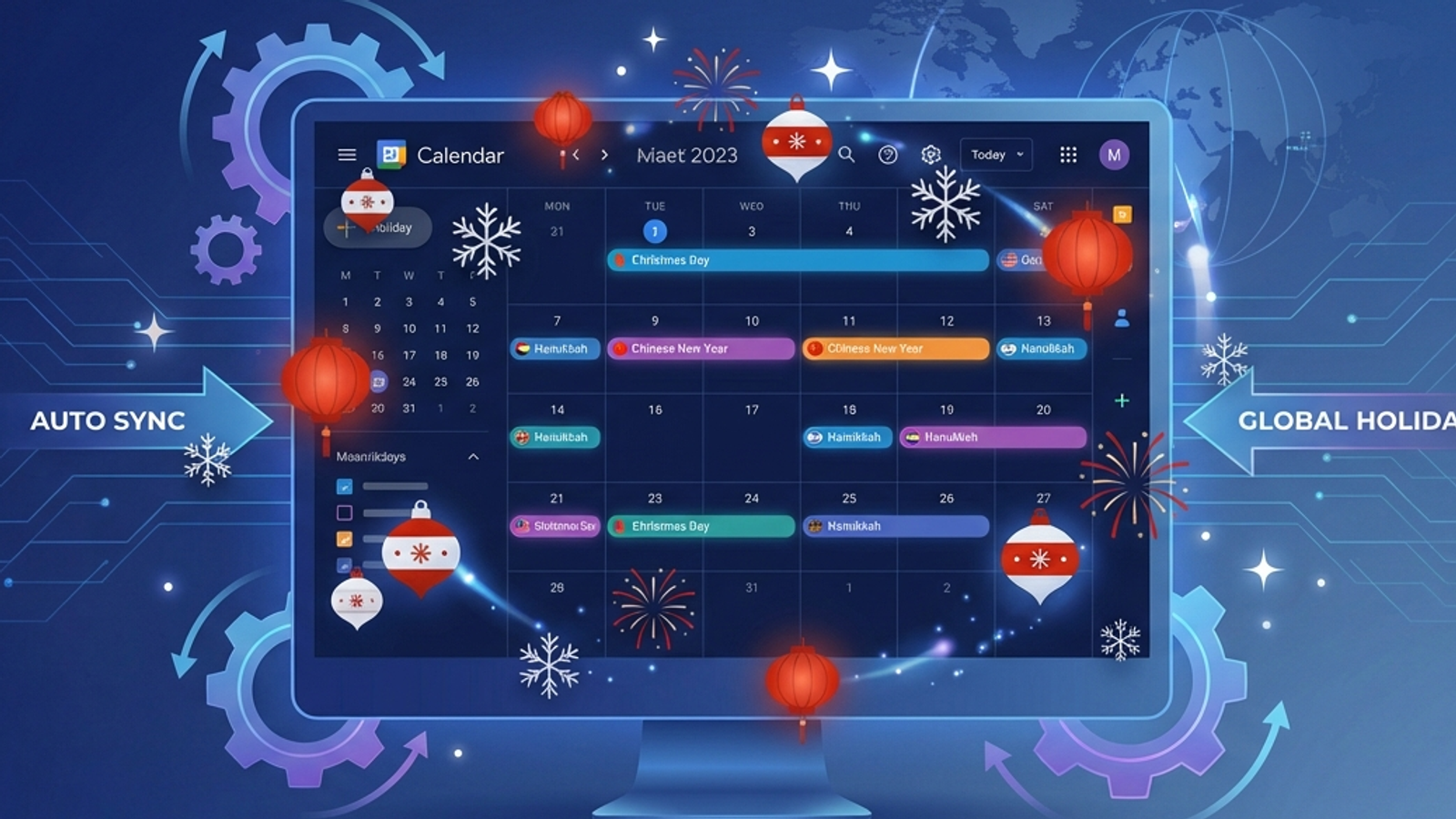
Google Calendar is the productivity backbone for millions of teams worldwide. Yet when it comes to managing public holidays—especially for distributed teams across multiple countries—even this powerful tool has significant limitations.
If you've ever tried to subscribe to multiple country holiday calendars, you know the pain: cluttered calendar views, missed regional holidays, and the annual scramble to update when holiday dates shift. For international teams, this quickly becomes unmanageable.
The good news? In 2026, there are better solutions than manual calendar subscriptions. This comprehensive guide covers everything you need to know about Google Calendar holiday automation: what's built into the platform, where it falls short, and how to implement true automation that scales for distributed teams.
Understanding Google Calendar's Built-In Holiday Features
Before exploring automation, let's understand what Google Calendar offers natively.
The Holiday Calendar Subscription Feature
Google Calendar includes a built-in feature to display public holidays:
How to enable it:
1. Open Google Calendar (web version)
2. Click the "+" next to "Other calendars" in the left sidebar
3. Select "Browse calendars of interest"
4. Navigate to "Regional holidays"
5. Select your country from the list
6. Holidays for that country appear on your calendar
What it provides:
- Official public holidays for most countries
- Automatically updates yearly
- Color-coded display (usually gray/light blue)
- No manual date entry required
The Limitation That Breaks Everything
Here's the critical constraint: You can only subscribe to ONE holiday calendar per Google Calendar account.
If you manage a team across Singapore, India, the UK, and the US, you can choose one country's holidays to display. The other three? You're on your own.
Why This Limitation Exists
Google Calendar's holiday feature was designed for individual users who primarily work in one location. The assumption was that you'd want to see your local holidays, not necessarily everyone else's.
For the distributed work era, this assumption breaks down. Managers need visibility across multiple countries. Team members working across time zones need to see colleagues' holidays. The one-calendar limit becomes a critical blocker.
What About Creating Multiple Calendars?
You might think: "I'll just create separate Google Calendars for each country and subscribe to holidays in each."
This doesn't work. The holiday calendar subscription is tied to your entire Google Calendar account, not individual calendars within it. Even if you create "India Team Calendar" and "Singapore Team Calendar," you can still only enable one country's holiday calendar.
Regional Holidays: Another Gap
Even the countries Google supports often don't include regional variations. For example:
- India has state-specific holidays that Google's calendar misses
- Canada has provincial holidays not reflected in the national calendar
- UAE has regional holidays that vary by Emirate
- US has some state-specific observances
If you have team members in Quebec, Gujarat, or Abu Dhabi, the built-in calendar won't capture their specific holidays.
Manual Workarounds (And Why They Don't Scale)
When the built-in feature fails, teams resort to manual workarounds. Let's examine each and why they eventually break down.
Workaround 1: Subscribe to External Holiday Calendar URLs
Google Calendar lets you subscribe to any public calendar via URL (ICal format). You can find holiday calendars for various countries online.
The problem: This still counts against your single holiday calendar limit. You can't mix and match—it's one country or nothing.
Workaround 2: Manually Add Holidays as Events
Teams create all-day events for each holiday: "Public Holiday - India - Diwali."
The problems:
- Someone has to enter each holiday manually
- Lunar calendar holidays (Diwali, Chinese New Year, Easter) shift dates yearly
- New team members in new countries mean starting over
- It takes hours to set up and just as long to maintain
Workaround 3: Shared Spreadsheet of Holidays
A master document lists everyone's holidays. Before scheduling, managers check the spreadsheet.
The problems:
- It's external to the scheduling workflow
- People forget to check it
- It doesn't integrate with Calendly, Zoom scheduling, or other tools
- Someone has to own keeping it updated
The Underlying Truth
No manual workaround scales beyond a few countries. The moment your team spans five or more locations, you're spending more time managing holidays than doing actual work.
Automation Solutions: Beyond Google Calendar's Limits
This is where dedicated holiday automation tools come in. They integrate with Google Calendar but don't rely on its limited holiday subscription feature.
How Holiday Automation Works
1. Connect your Google Calendar via OAuth (official Google integration)
2. Configure team member locations — specify which countries/regions each person works from
3. Tool automatically adds holidays — public holidays appear as all-day events or out-of-office blocks
4. Updates happen automatically — lunar calendar holidays update yearly without manual intervention
What Dedicated Tools Provide That Google Calendar Doesn't
- Multiple country support: Add holidays for any number of countries, not just one
- Regional variations: Capture state/provincial holidays, not just national ones
- Team-wide visibility: Managers see all team holidays in one view
- Automatic updates: No manual re-entry when holiday dates change
- Scheduling tool integration: Works with Calendly, Calendly alternative, and other booking tools
- Out-of-office blocking: Holidays appear as busy times automatically
Types of Holiday Automation Solutions
Dedicated holiday tools (like Autolidays):
- Built specifically for holiday calendar management
- Support 100+ countries with regional variations
- Focus entirely on holiday automation
- Automatic updates for lunar calendar holidays
HRIS integrations:
- BambooHR, Rippling, and similar tools can sync holidays
- Usually require larger teams or paid HRIS plans
- Holiday sync is secondary to core HR functions
Custom automation:
- Build your own using Google Calendar API + holiday data APIs (Calendarific, Nager.Date)
- Requires developer resources
- Flexible but high maintenance
Implementing Holiday Automation: A Step-by-Step Guide
Step 1: Audit Your Current State
Before choosing a solution, understand what you're dealing with:
- How many countries/regions does your team span?
- How many holidays total do you need to track?
- How are holidays currently communicated?
- How often do scheduling conflicts occur?
- What's the current manual overhead?
Step 2: Choose Your Solution
Based on team size:
Small teams (5-15 people, 1-3 countries):
- Manual approaches may still work
- Consider basic automation if frustration is high
Medium teams (15-40 people, 3-6 countries):
- Dedicated holiday tool recommended
- ROI is clear within months
Large teams (40+ people, 6+ countries):
- Automation is essential
- Manual approaches don't scale
Step 3: Configure Your Team
1. Invite team members or add their locations
2. Specify countries and regions (e.g., "India - Maharashtra" not just "India")
3. Choose how holidays appear: All-day busy, out-of-office, or visible-only
4. Set up team visibility: Who can see which holidays
Step 4: Test and Refine
- Verify upcoming holidays are appearing correctly
- Check regional holidays are included
- Test scheduling tool integration
- Gather team feedback
Common Questions About Holiday Automation
"Won't this clutter my calendar?"
Modern tools let you control display settings. You can:
- Show holidays as "free" (visible but don't block time)
- Use separate "Team Holidays" calendar
- Filter by specific countries
Choose what works for your workflow.
"What about personal observances?"
Some tools let team members add personal days (birthdays, anniversaries, religious observances) alongside public holidays. This is optional and employee-controlled.
"What if someone moves countries?"
Update their location in the tool. Holidays automatically adjust—no manual re-entry required.
"Is this secure?"
OAuth-based integrations are secure. Tools:
- Don't store your password
- Request minimal permissions
- Can be revoked anytime
The ROI of Holiday Automation
Let's calculate the real cost of manual holiday management:
Time spent:
- Initial setup: 3-5 hours
- Quarterly updates: 2 hours × 4 = 8 hours
- Checking before meetings: 15 min × 50 meetings = 12.5 hours
- Rescheduling conflicts: 30 min × 6 conflicts = 3 hours
Annual cost: ~27 hours per year for a 20-person team
With automation:
- Setup: 30 minutes
- Ongoing: 0 hours
- Conflicts: Near zero
Annual savings: ~26 hours/year — time redirected to actual work.
Conclusion
Google Calendar's built-in holiday feature is a good start, but it's not designed for the distributed team reality of 2026. The one-calendar limit, missing regional variations, and manual maintenance burden make native features insufficient for international teams.
True holiday automation—where the right holidays appear on the right calendars automatically—saves time, reduces errors, and signals to your team that their local context matters.
Whether you build custom automation, leverage your existing HRIS, or use a dedicated tool like Autolidays, the key is removing manual overhead while ensuring accuracy and coverage.
Start by auditing your current approach, calculating the true cost (time + errors + morale impact), and choosing an automation strategy that fits your team size and technical capacity.
Your distributed team will thank you the next time they don't get a meeting invite on their public holiday.
---
Ready to automate holiday management? Try Autolidays free for 14 days — automatically sync public holidays to your team's Google Calendars with zero manual effort.
Questions about implementation? Book a demo to see how automation works for your specific team structure.