
Out of office, full day or working hours events
Choose whether holidays go into Google Calendar as Out of office, all-day or working hours events.
Updated November 15, 2026
Autolidays can add each holiday to your calendar in one of three ways. You choose under Settings › General › Calendar Settings › Time block type. Changing it updates your upcoming holiday events straight away.
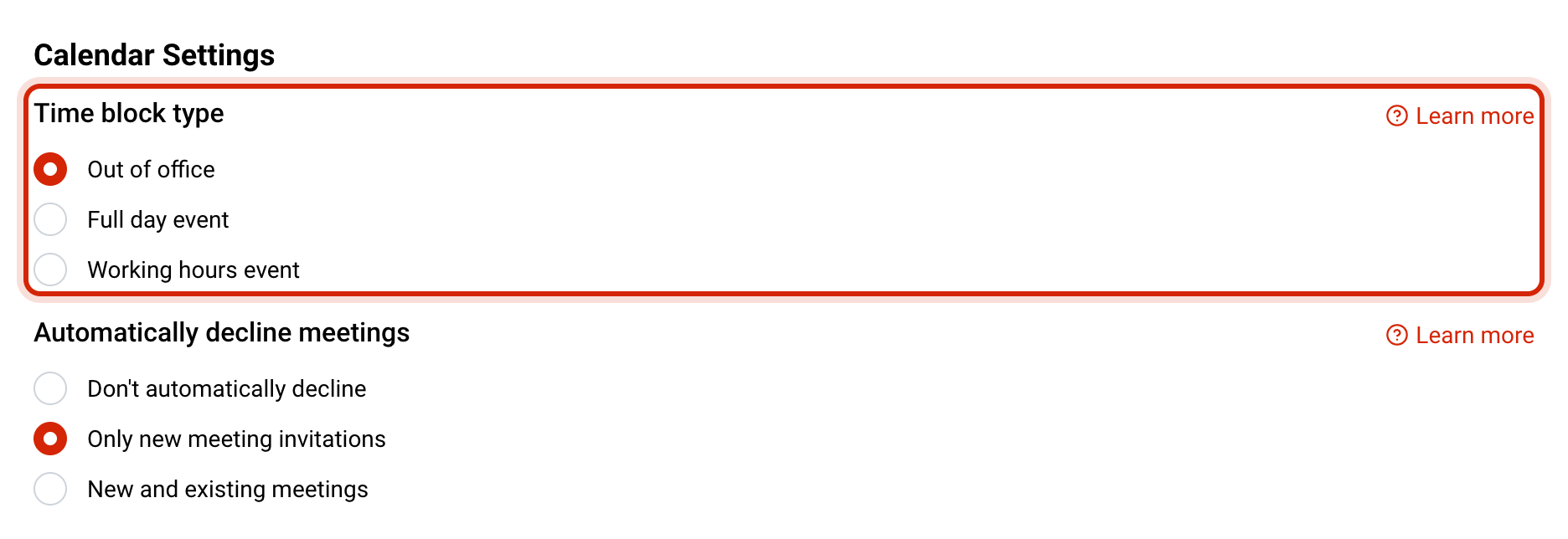
Out of office
This is Google Calendar's own Out of office event type. It marks you as away, shows a distinct out-of-office block to anyone who checks your availability, and is the only type that can decline meetings for you.
Google only offers Out of office events on Google Workspace (work or school) accounts, so this option isn't shown for personal @gmail.com accounts.
Full day event
A regular all-day event with the holiday's name, shown in the all-day row at the top of the day. It works on any Google account, including personal Gmail.
Working hours event
A regular timed event from 9:00 to 17:00 in your calendar's time zone. Use it when you want the holiday to fill your working day in the calendar grid instead of sitting in the all-day row. A holiday that lasts several days becomes a repeating daily event.
Holidays that start partway through the day
A few holidays start in the afternoon, such as eves of major holidays in Israel. For those, the event starts at the holiday's start time instead of midnight or 9:00. Your dashboard shows the time next to the date, for example "from 13:00".
What the events look like
- The event title is the holiday's name, with no prefix.
- Events go into your primary Google calendar.
- Holidays are added for the next 12 months, and new ones are added as they come into range.