
Install Autolidays for your Google Workspace
Install once as a Workspace admin, review everyone’s country, then roll out local public holidays to the whole organization.
Updated November 15, 2026
With the Google Workspace install, an admin sets up Autolidays once and everyone in the organization gets the public holidays of their own country in Google Calendar. Nobody else has to sign up or sign in, and new hires are picked up automatically.
1
Install from the Google Workspace Marketplace
A Google Workspace admin installs Autolidays from the Marketplace for the whole domain, an organizational unit or a group.
2
Connect your organization
On the For Teams page, select Connect your Google Workspace and sign in with the admin account that installed Autolidays.
3
Review everyone's country
The Organization page lists the people we found and the country detected for each. Fix any that are wrong or missing.
4
Start the Team plan
Start the 7-day free trial. Until then, only your own calendar gets holidays.
5
Roll out
Select Roll out. Each person's public holidays for the next 12 months appear in their calendar within a few minutes.
Before you start
- You need a Google Workspace admin account. Personal Gmail accounts can't use the team install; use the individual setup instead.
- If you see "Autolidays is not installed for your domain yet", the Marketplace install hasn't gone through for your domain. Install it first, then connect again.
- If you see "Only a Google Workspace admin can connect your organization", sign in with an admin account.
What the install allows
The Marketplace install lets Autolidays create and update the holiday events it adds to people's calendars, read each calendar's time zone, and read your user directory to find employees and their countries. It only reads back the holiday events it created itself.
Nothing changes until you roll out
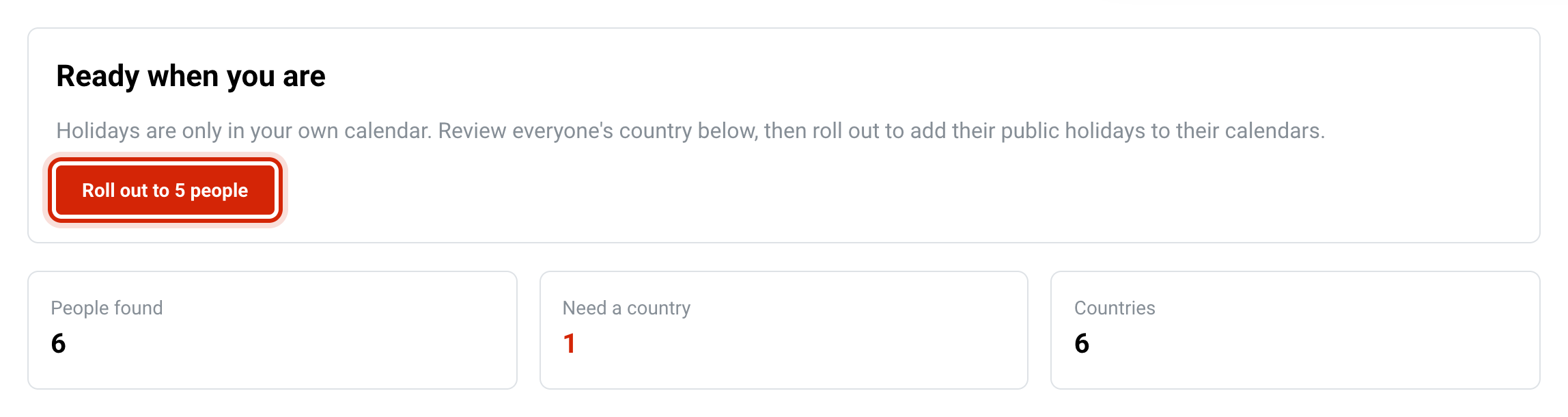
Connecting doesn't touch anyone else's calendar. Autolidays adds your own next public holiday so you can see what it looks like, and shows you what everyone else would get. Their holidays are only added when you select Roll out.
How each person's country is detected
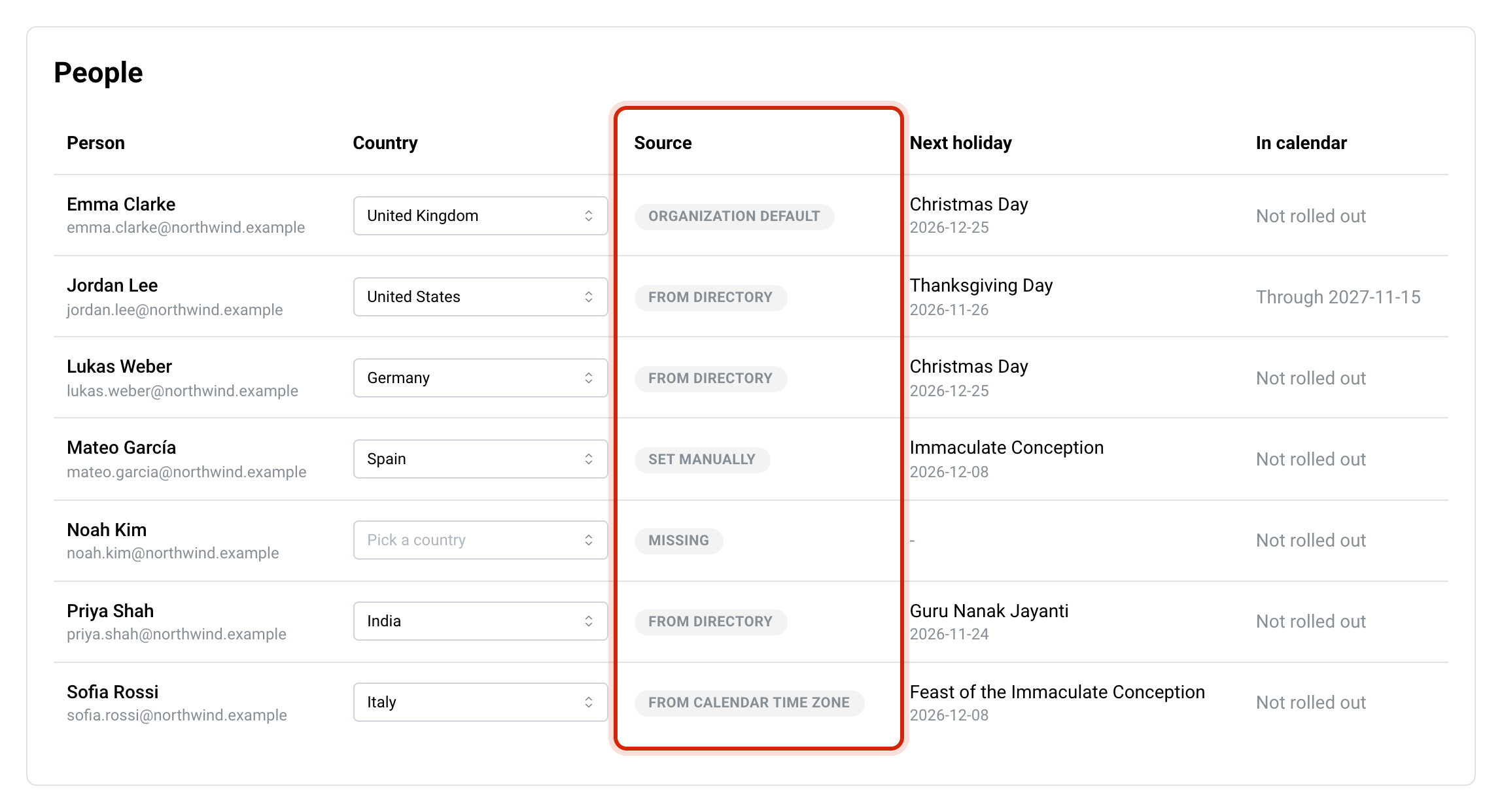
For each person, Autolidays uses the first of these that gives a supported country:
- From directory: the country in their Google Workspace user profile address or location.
- From calendar time zone: the country of their Google Calendar time zone.
- Organization default: the default country you set under Organization settings.
The Source column on the Organization page shows which one was used. People with no country show as Missing and are counted under Need a country.
To change someone's country, pick a new one in the Country column. That person is then marked Set manually, and later directory checks won't overwrite it.
Organization settings
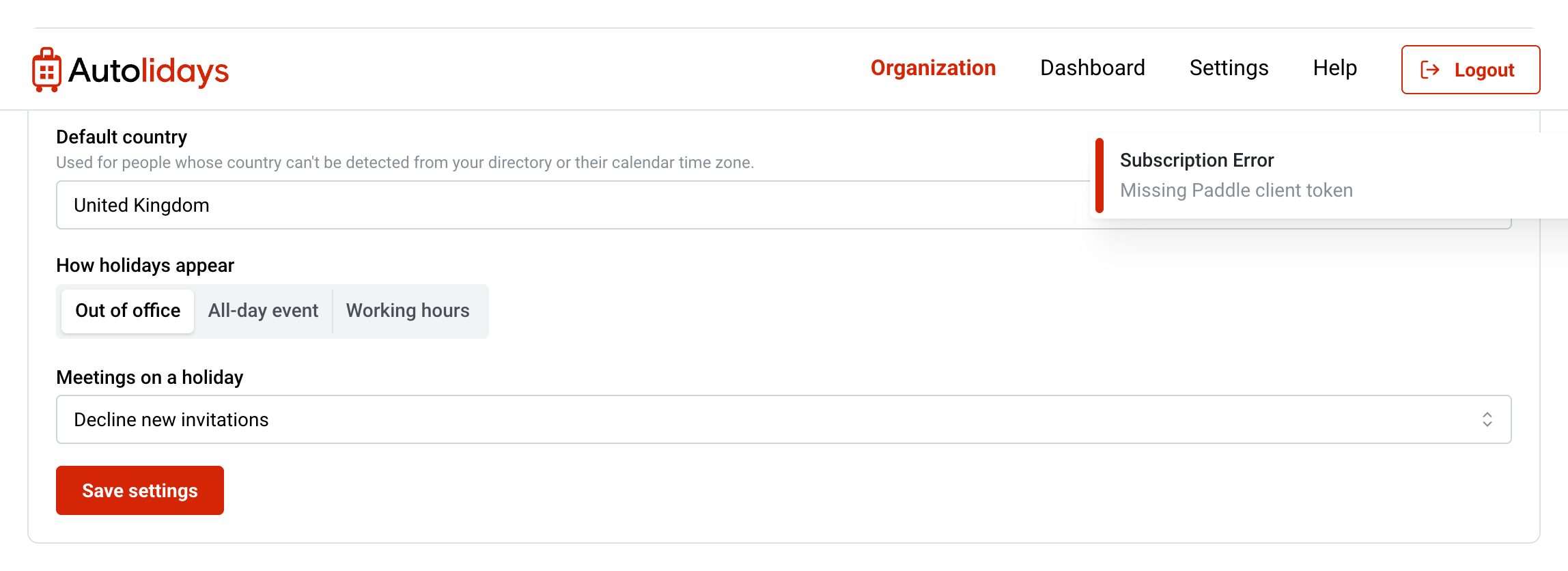
- Default country: used for anyone whose country can't be detected.
- How holidays appear: Out of office, All-day event or Working hours. See block types.
- Meetings on a holiday: keep invitations, decline new invitations, or decline all invitations. Only available with Out of office. See auto-decline.
Saving applies these settings to everyone in the organization, and calendars update over the next few minutes.
New hires and people who leave
Autolidays checks your directory every day, and you can check right away with Check directory now.
- New hires are added with their detected country. After you've rolled out, their holidays are added automatically.
- People who leave or are suspended are removed, and the holiday events Autolidays added to their calendar are deleted.
Stopping the rollout
Select Stop for everyone on the Organization page. Autolidays removes the holiday events it added to everyone's calendar except yours, and stops adding new ones. You can roll out again at any time.
If Autolidays is uninstalled from the Marketplace, holidays stop being added and the Organization page says so. Reinstall and connect again to resume.
Pricing
The Team plan covers 10 people for $30 a month or $300 a year, plus $1 a month or $10 a year for each additional person, and starts with a 7-day free trial. See pricing for details.
Set up Autolidays for your organization
Install once from the Google Workspace Marketplace and everyone gets their local public holidays, new hires included.